Tracks & Live Session
Live Session
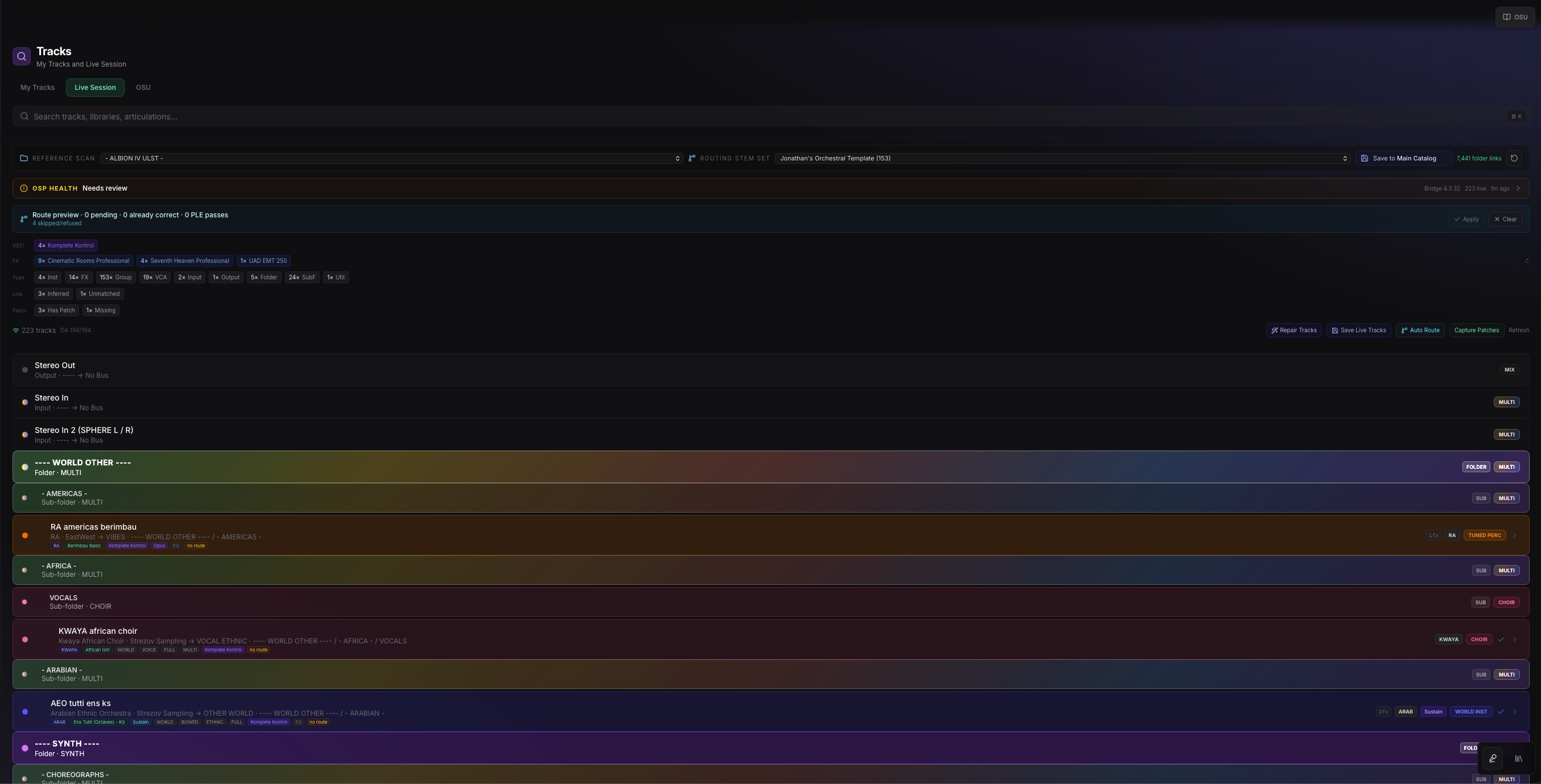
Live Session shows the current Cubase session and lets you refresh, inspect, repair, select, save, and route live rows.
What Live Session Is For
Live Session is for the project open in Cubase right now. It is the quickest way to inspect current tracks, save good rows into the catalog, and use OrcheStruct actions against the live DAW session.
Basic Workflow
Start by refreshing and selecting. Do not apply batch operations until you know Live Session is reading the project you expect.
Open Cubase with the intended project.
Open Tracks in OrcheStruct.
Switch to Live Session.
Choose the relevant reference scan and routing stem set if shown.
Click Refresh.
Select a row and confirm Cubase responds as expected.
What You Can Do From A Live Row
A live row can be inspected, repaired, saved into the catalog, selected/revealed in Cubase, and included in a route preview when enough evidence exists.
- Repair metadata when vendor/product/family evidence is weak.
- Save confirmed tracks to the active catalog profile.
- Use row clicks for Cubase select/reveal.
- Plan routes before applying them in Cubase.